博客托管在GitHub Pages上,非常方便。不过,对于图片如何处理,又是非常的不方便。一直以来,想用R2作图床。然而,毕竟本人并非计算机科班出身,就是学不会,遇到各种问题。念念不忘,必有回响,这次终于会了。不仅成功设置了图床,还用R2搭建了一个瀑布流相册,多年来的夙愿呀!
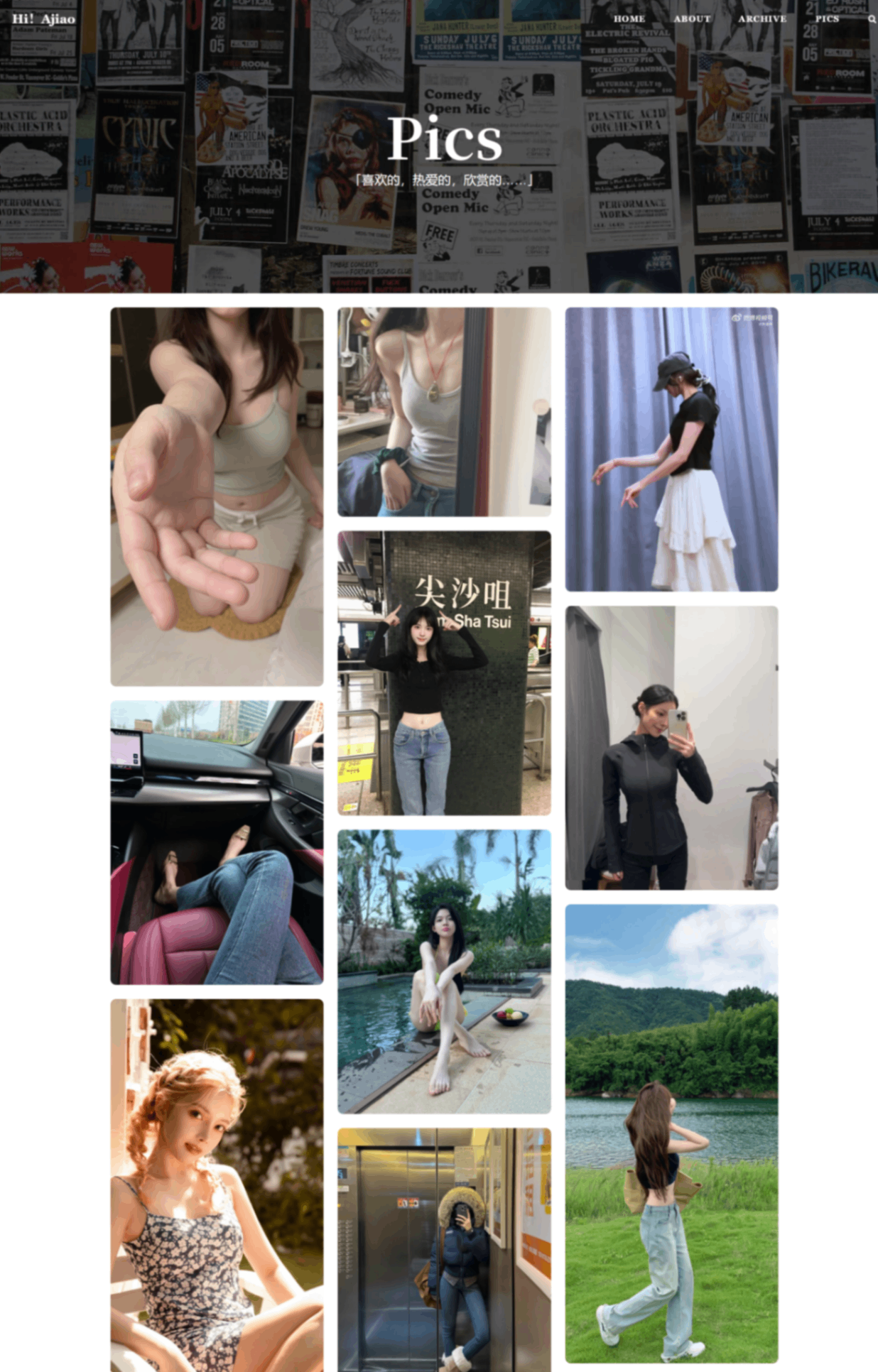
效果如下,还是不错的!为了记录,为了保存,整合大侠智慧,形成指南。
R2相册工作流程
- 手动将照片上传到 Cloudflare R2 Bucket
- 推送代码到 GitHub 触发 Actions
- Actions 中的脚本通过 S3 API 列出 R2 中的所有图片
- 脚本生成
_data/gallery.yml数据文件 - Jekyll 构建时读取该数据文件, 渲染相册页面
- 部署到 GitHub Pages
第一步: 创建 Cloudflare R2 Bucket
注册 Cloudflare 账号
前往 Cloudflare Dashboard 注册。
创建 Bucket
- 登录 Cloudflare Dashboard, 在左侧导航栏找到 R2 对象存储
- 点击 创建存储桶
- 输入存储桶名称, 比如
my-blog-gallery - 选择一个离你较近的区域 (如果不确定就选自动)
- 点击 创建存储桶
配置公开访问
相册图片需要能被公开访问, R2 提供两种方式: 方式一: 使用 R2.dev 子域名 (简单快速)
- 进入刚创建的存储桶, 点击 设置 标签
- 找到 公开访问 部分, 启用 R2.dev 子域名
- 确认后会得到一个类似
https://pub-xxxxxxxx.r2.dev的公开 URL 方式二: 绑定自定义域名 (推荐) 如果你有自己的域名并且已经托管在 Cloudflare 上: - 在存储桶的 设置 中, 找到 自定义域名
- 点击 连接域名, 输入你想使用的子域名, 比如
img.yourdomain.comCloudflare 会自动配置 DNS 记录和 SSL 证书 自定义域名的好处是 URL 更简洁, 而且自带 Cloudflare CDN 缓存加速.上传照片
你可以通过以下方式上传照片到 Bucket:
- Cloudflare Dashboard 网页端直接拖拽上传
- 使用 AWS CLI (因为 R2 兼容 S3 API)
- 使用 rclone 等第三方工具
第二步: 创建 R2 API Token
GitHub Actions 需要通过 API 访问 R2,所以我们需要创建一个 API Token.
- 在 Cloudflare Dashboard 左侧导航栏, 点击 R2 对象存储
- 点击 管理 R2 API 令牌
- 点击 创建 API 令牌
- 配置令牌:
令牌名称: 比如
github-actions-gallery权限: 选择 对象读取 (只需要读取权限即可) 指定存储桶: 选择你刚创建的存储桶 (最小权限原则) - 点击 创建 API 令牌
- 记录下生成的 Access Key ID 和 Secret Access Key
- 同时记下 Cloudflare Account ID, 在 Dashboard 右侧边栏能找到。
第三步: 配置 GitHub Secrets
在 GitHub 仓库中配置 Actions 所需的密钥:
- 进入仓库的 Settings → Secrets and variables → Actions
- 点击 New repository secret, 依次添加以下 Secrets:
| Secret 名称 | 值 |
|---|---|
R2_ACCOUNT_ID |
Cloudflare Account ID |
R2_ACCESS_KEY_ID |
R2 API Token 的 Access Key ID |
R2_SECRET_ACCESS_KEY |
R2 API Token 的 Secret Access Key |
R2_BUCKET_NAME |
存储桶名称, 如 my-blog-gallery |
R2_PUBLIC_URL |
公开访问 URL, 如 https://pub-xxx.r2.dev |
第四步: 编写相册生成脚本
这个脚本是流程的核心, 它负责从 R2 获取图片列表并生成 Jekyll 数据文件。
创建 scripts/generate-gallery-r2.sh:
1
2
3
4
5
6
7
8
9
10
11
12
13
14
15
16
17
18
19
20
21
22
23
24
25
26
27
28
29
30
31
32
33
34
35
36
37
38
39
40
41
42
43
44
45
46
47
48
49
50
51
52
53
54
55
56
57
58
59
60
61
62
63
64
65
66
#!/bin/bash
# 从 Cloudflare R2 自动获取图片列表,生成 _data/gallery.yml

set -euo pipefail

# 从 _config.yml 读取默认值(如果环境变量未设置)
CONFIG_FILE="_config.yml"

R2_PUBLIC_URL="${R2_PUBLIC_URL:-$(grep -A5 'r2_gallery:' "$CONFIG_FILE" \
  | grep 'public_url:' | sed 's/.*public_url: *"\(.*\)"/\1/' | tr -d ' ')}"
R2_PREFIX="${R2_PREFIX:-$(grep -A5 'r2_gallery:' "$CONFIG_FILE" \
  | grep 'prefix:' | sed 's/.*prefix: *"\(.*\)"/\1/' | tr -d ' ')}"

# 必须的环境变量检查
: "${R2_ACCOUNT_ID:?请设置 R2_ACCOUNT_ID 环境变量}"
: "${R2_ACCESS_KEY_ID:?请设置 R2_ACCESS_KEY_ID 环境变量}"
: "${R2_SECRET_ACCESS_KEY:?请设置 R2_SECRET_ACCESS_KEY 环境变量}"
: "${R2_BUCKET_NAME:?请设置 R2_BUCKET_NAME 环境变量}"
: "${R2_PUBLIC_URL:?请设置 R2_PUBLIC_URL 环境变量或在 _config.yml 中配置}"

OUTPUT="_data/gallery.yml"
ENDPOINT="https://${R2_ACCOUNT_ID}.r2.cloudflarestorage.com"
SUPPORTED_EXT="jpg|jpeg|png|gif|webp|avif|mp4|mov|webm|m4v"

echo "# 此文件由 scripts/generate-gallery-r2.sh 自动生成,请勿手动编辑" > "$OUTPUT"
echo "# 图片来源: ${R2_PUBLIC_URL}/${R2_PREFIX}" >> "$OUTPUT"
echo "" >> "$OUTPUT"

echo "正在从 R2 获取图片列表..."

# 使用 AWS CLI(S3 兼容)列出对象
aws s3api list-objects-v2 \
  --bucket "$R2_BUCKET_NAME" \
  --prefix "$R2_PREFIX" \
  --endpoint-url "$ENDPOINT" \
  --query "Contents[].{Key: Key, LastModified: LastModified, Size: Size}" \
  --output json 2>/dev/null | \
python3 -c "
import json, sys, re

data = json.load(sys.stdin)
if not data:
    sys.exit(0)

ext_pattern = re.compile(r'\.($SUPPORTED_EXT)$', re.IGNORECASE)

photos = [item for item in data if ext_pattern.search(item['Key'])]
photos.sort(key=lambda x: x['LastModified'], reverse=True)

for photo in photos:
    key = photo['Key']
    filename = key.rsplit('/', 1)[-1]
    name = filename.rsplit('.', 1)[0]
    title = name.replace('-', ' ').replace('_', ' ')
    url = '${R2_PUBLIC_URL}/' + key

    print(f'- title: \"{title}\"')
    print(f'  image: \"{url}\"')
    print(f'  key: \"{key}\"')
    print()

print(f'# 共 {len(photos)} 张照片', file=sys.stderr)
" >> "$OUTPUT" 2>&1

COUNT=$(grep -c '^- title:' "$OUTPUT" 2>/dev/null || echo "0")
echo "Gallery 生成完成: 共 ${COUNT} 张照片"
脚本的工作逻辑:
- 从环境变量或
_config.yml读取 R2 配置 - 通过
aws s3api list-objects-v2列出 Bucket 中的所有对象 (R2 兼容 S3 API) - 用 Python 过滤出图片文件 (支持 jpg/png/gif/webp/avif), 按修改时间倒序排列
- 从文件名自动生成标题, 拼接完整的公开 URL
- 输出为 YAML 格式写入
_data/gallery.yml生成的_data/gallery.yml格式如下:
1
2
3
4
5
6
- title: "sunset over the sea"
image: "https://pub-xxx.r2.dev/sunset-over-the-sea.jpg"
key: "sunset-over-the-sea.jpg"
title: "mountain view"
image: "https://pub-xxx.r2.dev/mountain-view.png"
key: "mountain-view.png"
第五步: 配置 Jekyll
在 _config.yml 中添加 R2 相册的配置:
1
2
3
# Cloudflare R2 Gallery Settings
r2_gallery:
  public_url: "https://****.****.com"
public_url: 你的 R2 公开访问域名, 不要以/结尾prefix: Bucket 中相册图片的前缀路径, 如果照片直接放在根目录就留空, 如果放在子目录比如gallery/就填gallery/
第六步: 创建相册页面
在根目录下面创建gallery.html,作为相册展示页面。
1
2
3
4
5
6
7
8
9
10
11
12
13
14
15
16
17
18
19
20
21
22
23
24
25
26
27
28
29
30
31
32
33
34
35
36
37
38
39
40
41
42
43
44
45
46
47
48
49
50
51
52
53
54
55
56
57
58
59
60
61
62
63
64
65
66
67
68
69
70
71
72
73
74
75
76
77
78
79
80
81
82
83
84
85
86
87
88
89
90
91
92
93
94
95
96
97
98
99
100
101
102
103
104
105
106
107
108
109
110
111
112
113
114
115
116
117
118
119
120
121
122
123
124
125
126
127
128
129
130
131
132
133
134
135
136
137
138
139
140
141
142
143
144
145
146
147
148
149
150
151
152
153
154
155
156
157
158
159
160
161
162
163
164
165
166
167
168
169
170
171
172
173
174
175
176
177
178
179
180
181
182
183
184
185
186
187
188
189
190
191
192
193
194
195
196
197
198
199
200
201
202
203
204
205
206
207
208
209
210
211
212
213
214
215
216
217
218
219
220
221
222
223
224
225
226
227
228
229
230
231
232
233
234
235
236
237
238
239
240
241
242
243
244
245
246
247
248
249
250
251
252
253
254
255
256
257
258
259
260
261
262
263
264
265
266
267
268
269
270
271
272
273
274
275
276
277
278
279
280
281
282
283
284
285
286
287
288
289
290
291
292
293
294
295
296
297
298
299
300
301
302
303
304
305
306
307
308
309
310
311
312
313
314
315
316
317
318
319
320
321
322
323
324
325
326
327
328
329
330
331
332
333
334
335
336
337
338
339
340
341
342
343
344
345
346
347
348
349
350
351
352
353
354
355
356
357
358
359
360
361
362
363
364
365
366
367
368
369
370
371
372
373
374
375
376
377
378
379
380
381
382
383
384
385
386
387
388
389
390
391
392
393
394
395
396
397
398
399
400
401
402
403
404
405
406
407
408
409
410
411
412
413
414
415
416
417
418
419
420
421
422
423
424
425
426
427
428
429
430
431
432
433
434
435
436
437
438
439
440
441
442
443
444
445
446
447
448
449
450
451
452
453
454
455
456
457
458
459
460
461
462
463
464
465
466
467
468
469
470
471
472
473
474
475
476
477
478
479
480
481
482
483
484
485
486
487
488
489
490
491
492
493
494
495
496
497
498
499
500
501
502
503
504
505
506
507
508
509
510
511
512
513
514
515
516
517
518
519
520
521
522
523
524
525
526
527
528
529
530
531
532
533
534
535
536
537
538
539
540
541
542
543
544
545
546
547
548
549
550
551
552
553
554
555
556
557
558
559
560
561
562
563
564
565
566
567
568
569
570
571
572
573
574
575
576
577
578
579
580
581
582
583
584
585
586
587
588
589
590
591
592
593
594
595
596
597
598
599
600
601
602
603
604
605
606
607
608
609
610
611
612
613
614
615
616
617
618
619
620
621
622
623
624
625
626
627
628
629
630
631
632
633
634
635
636
637
---
layout: gallery
title: "Pics"
description: "「喜欢的,热爱的,欣赏的……」"
header-img: "img/home-bg-pics.jpg"
permalink: /gallery/
---
<style>
/* ========== 基础变量 ========== */
:root {
--primary: #007aff;
--primary-gradient: linear-gradient(135deg, #007aff, #5856d6);
--text-dark: #1a1a1a;
--text-light: #888;
}
/* ========== 瀑布流 ========== */
.waterfall {
column-count: 3;
column-gap: 20px;
}
.waterfall-item {
break-inside: avoid;
margin-bottom: 20px;
cursor: pointer;
transition: all 0.25s ease;
position: relative;
}
.waterfall-item img,
.waterfall-item video {
width: 100%;
border-radius: 8px;
display: block;
transition: transform 0.2s;
}
.waterfall-item:hover img,
.waterfall-item:hover video {
transform: scale(1.02);
}
/* ========== 加载更多按钮 ========== */
.load-more-btn {
text-align: center;
margin: 40px 0 60px;
}
.load-more-btn button {
background: var(--primary-gradient);
border: none;
color: white;
padding: 12px 32px;
font-size: 16px;
font-weight: 500;
border-radius: 40px;
cursor: pointer;
transition: all 0.25s ease;
box-shadow: 0 2px 8px rgba(0,122,255,0.3);
}
.load-more-btn button:hover {
transform: translateY(-2px);
box-shadow: 0 6px 16px rgba(0,122,255,0.4);
}
.loading-indicator, .end-message {
text-align: center;
margin: 40px 0;
color: #bbb;
}
/* ========== Lightbox ========== */
.lightbox {
display: none;
position: fixed;
top: 0;
left: 0;
width: 100%;
height: 100%;
background: rgba(0,0,0,0.92);
z-index: 1000;
justify-content: center;
align-items: center;
cursor: pointer;
}
.lightbox.active { display: flex; }
/* Lightbox 内容容器 - 居中且限制尺寸 */
.lightbox-content {
display: flex;
justify-content: center;
align-items: center;
max-width: 90vw;
max-height: 90vh;
z-index: 1002;
}
.lightbox-content img,
.lightbox-content video {
max-width: 90vw;
max-height: 90vh;
width: auto;
height: auto;
object-fit: contain;
border-radius: 8px;
box-shadow: 0 8px 30px rgba(0,0,0,0.4);
cursor: default;
}
/* 左右导航区域 */
.lightbox-prev, .lightbox-next {
position: absolute;
top: 0;
height: 100%;
width: 25%;
cursor: pointer;
z-index: 1001;
display: flex;
align-items: center;
transition: background 0.2s ease;
}
.lightbox-prev { left: 0; justify-content: flex-start; padding-left: 20px; }
.lightbox-next { right: 0; justify-content: flex-end; padding-right: 20px; }
.lightbox-prev:hover { background: linear-gradient(90deg, rgba(0,0,0,0.3), transparent); }
.lightbox-next:hover { background: linear-gradient(-90deg, rgba(0,0,0,0.3), transparent); }
.nav-arrow {
font-size: 48px;
color: rgba(255,255,255,0.7);
opacity: 0;
transition: opacity 0.2s ease;
text-shadow: 0 2px 4px rgba(0,0,0,0.3);
}
.lightbox-prev:hover .nav-arrow, .lightbox-next:hover .nav-arrow {
opacity: 1;
}
.lightbox-close {
position: absolute;
top: 20px;
right: 30px;
font-size: 44px;
color: white;
background: none;
border: none;
cursor: pointer;
z-index: 1002;
opacity: 0.8;
transition: opacity 0.2s;
}
.lightbox-close:hover { opacity: 1; }
.image-counter {
position: absolute;
bottom: 30px;
left: 50%;
transform: translateX(-50%);
color: white;
font-size: 13px;
font-family: Arial, Helvetica, sans-serif;
z-index: 1002;
pointer-events: none;
white-space: nowrap;
}
/* ========== 响应式 ========== */
@media (max-width: 768px) {
.waterfall { column-count: 2; gap: 12px; margin-top: 20px; }
.lightbox-prev, .lightbox-next { width: 20%; }
.nav-arrow { font-size: 36px; opacity: 0.5; }
.lightbox-content { max-width: 95vw; max-height: 95vh; }
.lightbox-content img,
.lightbox-content video { max-width: 95vw; max-height: 95vh; }
}
@media (max-width: 480px) {
.waterfall { column-count: 1; margin-top: 20px; }
}
</style>
<!-- 瀑布流容器 -->
<div id="waterfallContainer" class="waterfall"></div>
<!-- 加载更多 -->
<div id="loadMoreBtn" class="load-more-btn" style="display: none;">
<button onclick="loadMore()">📷 加载更多照片</button>
</div>
<div id="loadingIndicator" class="loading-indicator" style="display: none;">⏳ 加载中...</div>
<div id="endMessage" class="end-message" style="display: none;">✨ 已经到底了 ✨</div>
<!-- Lightbox -->
<div id="lightbox" class="lightbox" onclick="closeLightbox()">
<button class="lightbox-close" onclick="closeLightbox()">×</button>
<div class="lightbox-prev" onclick="event.stopPropagation(); prevImage()">
<span class="nav-arrow">‹</span>
</div>
<div id="lightboxContent" class="lightbox-content"></div>
<div class="lightbox-next" onclick="event.stopPropagation(); nextImage()">
<span class="nav-arrow">›</span>
</div>
<div id="imageCounter" class="image-counter"></div>
</div>
<script>
// ========== 数据存储 ==========
let allPhotos = [];
let currentPage = 1;
const pageSize = 16;
let isLoading = false;
let hasMore = true;
let currentImageIndex = 0;
let allImagesArray = [];
// ========== 判断是否为视频 ==========
function isVideoUrl(url) {
return /\.(mp4|mov|webm|m4v|avi|mkv)$/i.test(url);
}
// ========== 从 Jekyll 获取数据 ==========
function initPhotoData() {
allImagesArray = [
{
title: "8ee5b070ly1igbkzcn2fxj20qo0vqdka",
image: "https://img.ajiao.eu.org/Pic/8ee5b070ly1igbkzcn2fxj20qo0vqdka.jpg"
},
{
title: " 20260817091432 323 12",
image: "https://img.ajiao.eu.org/Pic/_20260817091432_323_12.jpg"
},
{
title: " 20260817091433 324 12",
image: "https://img.ajiao.eu.org/Pic/_20260817091433_324_12.jpg"
},
{
title: " 20260817091434 325 12",
image: "https://img.ajiao.eu.org/Pic/_20260817091434_325_12.jpg"
},
{
title: " 2026 07 22 094942 294",
image: "https://img.ajiao.eu.org/Pic/_2026-07-22_094942_294.jpg"
},
{
title: " 2026 07 22 095013 716",
image: "https://img.ajiao.eu.org/Pic/_2026-07-22_095013_716.jpg"
},
{
title: " 2026 07 22 095019 779",
image: "https://img.ajiao.eu.org/Pic/_2026-07-22_095019_779.jpg"
},
{
title: " 1 力力吃不饱 来自小红书网页版",
image: "https://img.ajiao.eu.org/Pic/_1_力力吃不饱_来自小红书网页版.jpg"
},
{
title: "在意细节的,会懂这件。。 2 没事点点头 来自小红书网页版",
image: "https://img.ajiao.eu.org/Pic/在意细节的,会懂这件。。_2_没事点点头_来自小红书网页版.jpg"
},
{
title: "已经400多天没有恋爱了 1 小猪猪日记 来自小红书网页版",
image: "https://img.ajiao.eu.org/Pic/已经400多天没有恋爱了_1_小猪猪日记_来自小红书网页版.jpg"
},
{
title: " 2 Ashley 来自小红书网页版",
image: "https://img.ajiao.eu.org/Pic/_2_Ashley_来自小红书网页版.jpg"
},
{
title: "百搭牛仔短裤,爱了爱了 1 嘉艺 来自小红书网页版",
image: "https://img.ajiao.eu.org/Pic/百搭牛仔短裤,爱了爱了_1_嘉艺_来自小红书网页版.jpg"
},
{
title: "又欲又撩人!清冷禅意的蕾丝吊带睡衣免穿bra 1 发财卷毛 来自小红书网页版",
image: "https://img.ajiao.eu.org/Pic/又欲又撩人!清冷禅意的蕾丝吊带睡衣免穿bra_1_发财卷毛_来自小红书网页版.jpg"
},
{
title: "吹爆这条蓝色包臀裙! 2 奈黎studio 来自小红书网页版",
image: "https://img.ajiao.eu.org/Pic/吹爆这条蓝色包臀裙!_2_奈黎studio_来自小红书网页版.jpg"
},
{
title: " 1 天天写日记 来自小红书网页版",
image: "https://img.ajiao.eu.org/Pic/_1_天天写日记_来自小红书网页版.jpg"
},
{
title: "🐰 1 呀咪呀咪 来自小红书网页版",
image: "https://img.ajiao.eu.org/Pic/🐰_1_呀咪呀咪_来自小红书网页版.jpg"
},
{
title: "超短裙穿搭 1 邪恶水蜜桃 来自小红书网页版",
image: "https://img.ajiao.eu.org/Pic/超短裙穿搭_1_邪恶水蜜桃_来自小红书网页版.jpg"
},
{
title: "白天穿短裙出门,不晒黑都难 1 来喜 来自小红书网页版",
image: "https://img.ajiao.eu.org/Pic/白天穿短裙出门,不晒黑都难_1_来喜_来自小红书网页版.mp4"
},
{
title: "你到底吃不吃我撒娇这一套 8 王妍汐🐑 来自小红书网页版",
image: "https://img.ajiao.eu.org/Pic/你到底吃不吃我撒娇这一套_8_王妍汐🐑_来自小红书网页版.jpg"
},
{
title: "在家也能氛围感📸~ 1 小荔枝枝💭 来自小红书网页版",
image: "https://img.ajiao.eu.org/Pic/在家也能氛围感📸~_1_小荔枝枝💭_来自小红书网页版.jpg"
},
{
title: "果然阳光就是最好的滤镜 4 小西瓜🍉 来自小红书网页版",
image: "https://img.ajiao.eu.org/Pic/果然阳光就是最好的滤镜_4_小西瓜🍉_来自小红书网页版.jpg"
},
{
title: " 1 全是好看壁纸 来自小红书网页版",
image: "https://img.ajiao.eu.org/Pic/_1_全是好看壁纸_来自小红书网页版.jpg"
},
{
title: "素颜出门好自在! 1 兔几航 来自小红书网页版",
image: "https://img.ajiao.eu.org/Pic/素颜出门好自在!_1_兔几航_来自小红书网页版.jpg"
},
{
title: "☕️ 1 YINGLIoo 来自小红书网页版",
image: "https://img.ajiao.eu.org/Pic/☕️_1_YINGLIoo_来自小红书网页版.jpg"
},
{
title: "1040g3k0320ffjtie5c005n5ccp04j1up3v4g8s8 nc n webp mw 1",
image: "https://img.ajiao.eu.org/Pic/1040g3k0320ffjtie5c005n5ccp04j1up3v4g8s8-nc_n_webp_mw_1.webp"
},
{
title: "1040g3k8320nbna1kme7g5o63eq208otja1l3hco nd dft wlteh webp 3",
image: "https://img.ajiao.eu.org/Pic/1040g3k8320nbna1kme7g5o63eq208otja1l3hco-nd_dft_wlteh_webp_3.webp"
},
{
title: "1040g3k8320ne2ho05m405ocokjbk1qqb2qolqsg nd dft wlteh webp 3",
image: "https://img.ajiao.eu.org/Pic/1040g3k8320ne2ho05m405ocokjbk1qqb2qolqsg-nd_dft_wlteh_webp_3.webp"
},
{
title: "0089JD2uly1hsf5gexseqj316o23sqv5",
image: "https://img.ajiao.eu.org/Pic/0089JD2uly1hsf5gexseqj316o23sqv5.jpg"
},
{
title: "0089JD2uly1h9bi8yqvivj30u01uo7kc",
image: "https://img.ajiao.eu.org/Pic/0089JD2uly1h9bi8yqvivj30u01uo7kc.jpg"
},
{
title: " 6 ",
image: "https://img.ajiao.eu.org/Pic/_6_-_.jpg"
},
{
title: "1040g3k831uae3h5mio3g5n2g1dt66prccbdkoq0 nd dft wlteh webp 3",
image: "https://img.ajiao.eu.org/Pic/1040g3k831uae3h5mio3g5n2g1dt66prccbdkoq0-nd_dft_wlteh_webp_3.webp"
},
{
title: "壁纸湖网bizihucom 手机壁纸",
image: "https://img.ajiao.eu.org/Pic/壁纸湖网bizihucom - 手机壁纸.jpg"
},
{
title: "1040g3k831u4eb3umiu805n207oa1ut1q0jo7ra0!nd dft wlteh webp 3",
image: "https://img.ajiao.eu.org/Pic/1040g3k831u4eb3umiu805n207oa1ut1q0jo7ra0!nd_dft_wlteh_webp_3.webp"
},
{
title: "1040g3k831qn6rgjv748g5q6q53nolki",
image: "https://img.ajiao.eu.org/Pic/1040g3k831qn6rgjv748g5q6q53nolki.jpg"
},
{
title: "1040g3k831tvf20regs7g4baunalo2uaatdaq7t8!nd dft wgth webp 3",
image: "https://img.ajiao.eu.org/Pic/1040g3k831tvf20regs7g4baunalo2uaatdaq7t8!nd_dft_wgth_webp_3.webp"
},
{
title: "1040g3k831on15ao1gg7g5n95epf5gpr",
image: "https://img.ajiao.eu.org/Pic/1040g3k831on15ao1gg7g5n95epf5gpr.jpg"
},
{
title: "1040g3k831ql033vp0m8g4a5euo8m4pt",
image: "https://img.ajiao.eu.org/Pic/1040g3k831ql033vp0m8g4a5euo8m4pt.jpg"
},
{
title: "1040g00831qm6eem2no1g4bo6blce01l",
image: "https://img.ajiao.eu.org/Pic/1040g00831qm6eem2no1g4bo6blce01l.jpg"
},
{
title: "1040g3k831mipe8nh5ia049mdf31nruvlcl5ama8!nd dft wlteh webp 3",
image: "https://img.ajiao.eu.org/Pic/1040g3k831mipe8nh5ia049mdf31nruvlcl5ama8!nd_dft_wlteh_webp_3.webp"
},
{
title: "美女 首页 微博",
image: "https://img.ajiao.eu.org/Pic/美女 - 首页 - 微博.mp4"
},
{
title: "0043khXjgx08jYtvs6Wk0f0f01007fGM0k01",
image: "https://img.ajiao.eu.org/Pic/0043khXjgx08jYtvs6Wk0f0f01007fGM0k01.mov"
},
{
title: "1040g3k031pbl53qt3c3g5pk23jlhond",
image: "https://img.ajiao.eu.org/Pic/1040g3k031pbl53qt3c3g5pk23jlhond.jpg"
},
{
title: "1040g2sg31mepei0g686g5q36h3in9ai",
image: "https://img.ajiao.eu.org/Pic/1040g2sg31mepei0g686g5q36h3in9ai.jpg"
},
{
title: "1000g00825aasglsfc00g4a1btgvd7pu",
image: "https://img.ajiao.eu.org/Pic/1000g00825aasglsfc00g4a1btgvd7pu.jpg"
}
];
allPhotos = allImagesArray;
}
// ========== 渲染瀑布流 ==========
function renderWaterfall(page) {
const end = page * pageSize;
const photosToShow = allPhotos.slice(0, end);
const container = document.getElementById('waterfallContainer');
container.innerHTML = '';
photosToShow.forEach((photo, idx) => {
const item = document.createElement('div');
item.className = 'waterfall-item';
const url = photo.image;
const isVideo = isVideoUrl(url);
if (isVideo) {
// 视频:静音循环自动播放
const video = document.createElement('video');
video.src = url;
video.autoplay = true;
video.muted = true;
video.loop = true;
video.playsInline = true;
video.preload = 'metadata';
video.style.width = '100%';
video.style.display = 'block';
video.setAttribute('playsinline', '');
item.onclick = (e) => {
e.stopPropagation();
openLightbox(url, idx);
};
item.appendChild(video);
} else {
// 图片
const img = document.createElement('img');
img.src = url;
img.alt = photo.title;
img.loading = 'lazy';
img.style.width = '100%';
img.style.display = 'block';
item.onclick = () => openLightbox(url, idx);
item.appendChild(img);
}
container.appendChild(item);
});
// 更新按钮状态
const loadMoreBtn = document.getElementById('loadMoreBtn');
const endMessage = document.getElementById('endMessage');
if (photosToShow.length >= allPhotos.length) {
hasMore = false;
loadMoreBtn.style.display = 'none';
endMessage.style.display = 'block';
} else {
hasMore = true;
loadMoreBtn.style.display = 'block';
endMessage.style.display = 'none';
}
}
// ========== 加载更多 ==========
function loadMore() {
if (isLoading || !hasMore) return;
isLoading = true;
const loadingIndicator = document.getElementById('loadingIndicator');
loadingIndicator.style.display = 'block';
setTimeout(() => {
currentPage++;
renderWaterfall(currentPage);
isLoading = false;
loadingIndicator.style.display = 'none';
}, 200);
}
// ========== Lightbox 功能 ==========
function openLightbox(url, index) {
const lb = document.getElementById('lightbox');
const contentDiv = document.getElementById('lightboxContent');
const counter = document.getElementById('imageCounter');
currentImageIndex = index;
const isVideo = isVideoUrl(url);
// 清空内容
contentDiv.innerHTML = '';
if (isVideo) {
// 视频:带控制条、有声
const video = document.createElement('video');
video.src = url;
video.controls = true;
video.autoplay = true;
video.playsInline = true;
video.style.maxWidth = '90vw';
video.style.maxHeight = '90vh';
video.style.width = 'auto';
video.style.height = 'auto';
video.style.borderRadius = '8px';
contentDiv.appendChild(video);
} else {
// 图片
const img = document.createElement('img');
img.src = url;
img.alt = '';
img.style.maxWidth = '90vw';
img.style.maxHeight = '90vh';
img.style.width = 'auto';
img.style.height = 'auto';
img.style.borderRadius = '8px';
img.style.cursor = 'default';
contentDiv.appendChild(img);
}
if (counter && allImagesArray.length > 0) {
counter.textContent = `${index + 1} / ${allImagesArray.length}`;
}
lb.classList.add('active');
document.body.style.overflow = 'hidden';
}
function closeLightbox() {
const lb = document.getElementById('lightbox');
const contentDiv = document.getElementById('lightboxContent');
// 停止视频播放
const video = contentDiv.querySelector('video');
if (video) {
video.pause();
}
lb.classList.remove('active');
document.body.style.overflow = '';
}
function nextImage() {
if (currentImageIndex < allImagesArray.length - 1) {
currentImageIndex++;
const nextUrl = allImagesArray[currentImageIndex].image;
openLightbox(nextUrl, currentImageIndex);
}
}
function prevImage() {
if (currentImageIndex > 0) {
currentImageIndex--;
const prevUrl = allImagesArray[currentImageIndex].image;
openLightbox(prevUrl, currentImageIndex);
}
}
// ========== 键盘支持 ==========
document.addEventListener('keydown', (e) => {
const lb = document.getElementById('lightbox');
if (!lb.classList.contains('active')) return;
if (e.key === 'Escape') {
closeLightbox();
} else if (e.key === 'ArrowLeft') {
prevImage();
} else if (e.key === 'ArrowRight') {
nextImage();
}
});
// ========== 初始化 ==========
document.addEventListener('DOMContentLoaded', () => {
initPhotoData();
if (allPhotos.length === 0) {
document.getElementById('waterfallContainer').innerHTML = '<p style="text-align:center;">📷 暂无照片或视频,请在 R2 上传后运行 Workflow</p>';
return;
}
renderWaterfall(1);
});
</script>
第七步: 配置 GitHub Actions
在 `.github/workflows/中,需要在 Jekyll 构建之前添加相册生成步骤:
1
2
3
4
5
6
7
8
9
10
11
12
13
14
15
16
17
18
19
20
21
22
23
24
25
26
27
28
29
30
31
32
33
34
35
36
37
38
39
40
41
42
43
44
45
46
47
48
49
50
51
52
53
54
55
56
57
58
59
60
name: R2 Gallery

on:
  push:
    branches: ["master"]
  workflow_dispatch:

permissions:
  contents: write
  pages: write
  id-token: write

jobs:
  build:
    runs-on: ubuntu-latest
    steps:
      - name: Checkout code
        uses: actions/checkout@v4
        with:
          fetch-depth: 0

      - name: Install Python and AWS CLI
        run: |
          sudo apt-get update
          sudo apt-get install -y python3 python3-pip
          pip3 install awscli --quiet

      - name: Generate gallery data
        env:
          R2_ACCOUNT_ID: $
          R2_ACCESS_KEY_ID: $
          R2_SECRET_ACCESS_KEY: $
          R2_BUCKET_NAME: $
          R2_PUBLIC_URL: $
          R2_PREFIX: "Pic/"
          AWS_ACCESS_KEY_ID: $
          AWS_SECRET_ACCESS_KEY: $
          AWS_DEFAULT_REGION: auto
        run: |
          echo "=== 当前目录 ==="
          pwd
          ls -la

          echo "=== 运行脚本 ==="
          chmod +x scripts/generate-gallery-r2.sh
          bash scripts/generate-gallery-r2.sh

          echo "=== 检查生成的文件 ==="
          ls -la _data/
          cat _data/gallery.yml | head -20

      - name: Commit gallery data
        run: |
          git config user.name "github-actions[bot]"
          git config user.email "github-actions[bot]@users.noreply.github.com"
          git add _data/gallery.yml
          git status
          git diff --staged || echo "没有变化"
          git commit -m "Auto update gallery data" || echo "没有需要提交的更改"
          git push
日常使用流程
配置完成后, 日常添加照片的流程非常简单:
- 将照片上传到 R2 Bucket (通过 Dashboard 或 CLI)
- 推送任意代码改动到
main分支 (或手动触发 workflow) - GitHub Actions 自动拉取最新图片列表, 构建并部署